You Use Rectangle. Here's the Layer It's Missing.
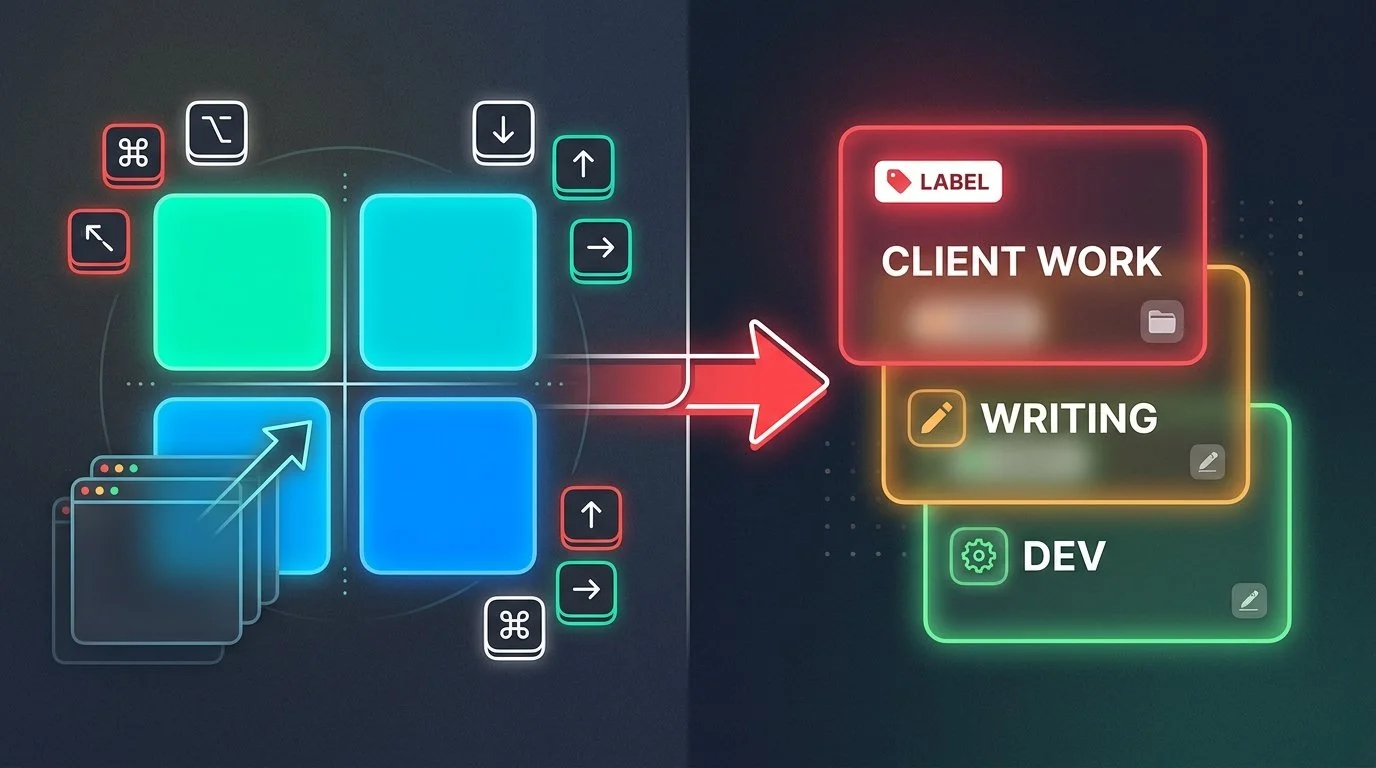
Rectangle is excellent at what it does: snap windows, resize them with keyboard shortcuts, and tile your screen layout. But if you're still manually reopening apps, hunting for browser tabs, and rebuilding your workspace every time you switch projects, that's not a Rectangle problem. That's a context persistence problem.
Rectangle positions your windows. Ikuna remembers your work.
They're not alternatives. They're complementary. Rectangle handles the layout layer — where windows sit on your screen. Ikuna handles the memory layer — which apps, tabs, and window positions belong to each project, and restores everything when you switch back.
Many users run both. Rectangle for quick window snapping during a session. Ikuna for switching between complete project environments.
What Rectangle Actually Does
Rectangle is a keyboard-driven window manager. It's fast, free, and genuinely excellent at positioning windows.
You press Ctrl+Option+Left and your window snaps to the left half of the screen. Press it again and it cycles to two-thirds. Press Ctrl+Option+F and it goes fullscreen. The shortcuts are instant and the behavior is predictable.
Rectangle has no concept of a project. It doesn't remember which apps belong to which client. It doesn't track your browser tabs. It doesn't know that when you switch from writing mode to client review mode, you need a completely different set of tools open.
Every time you switch projects, you start from scratch: opening apps, hunting for browser tabs, repositioning windows.
That's where Ikuna comes in.
What Ikuna Actually Does
Ikuna is a context manager. It saves your complete project environment as a reusable workspace.
That means:
Which apps were open
Where each window was positioned
Which browser tabs belonged to that setup
Which macOS Focus Mode was active
Which desktop (Space) each window was on
When you switch to a different project, Ikuna closes the current context and restores the saved one. Everything reopens exactly as you left it. The apps. The tabs. The window positions. The Focus Mode.
You're not rebuilding your workspace from memory. You're loading a saved state.
Rectangle vs. Ikuna: What Does Each One Actually Solve?
| Feature |
Rectangle Layout layer |
Ikuna Context layer |
|---|---|---|
| Primary function | Window positioning | Context persistence |
| Snap windows to edges | ✓ | — |
| Keyboard layout shortcuts | ✓ | — |
| Remembers apps per project | — | ✓ |
| Restores browser tabs | — | ✓ |
| Restores after restart | — | ✓ |
| Switch full environments | — | ✓ |
| Focus Mode per project | — | ✓ |
| Multi-monitor support | ✓ | ✓ |
Rectangle is a layout tool. Ikuna is a memory layer for your work.
How to Use Rectangle and Ikuna Together
This is the setup many Mac users run:
1. Use Ikuna to define your project contexts
Create a workspace for each repeating project:
Client A: Figma, Slack, Chrome with three specific tabs, Notes
Writing: Ulysses, Safari with research tabs, Music
Admin: Mail, Calendar, Excel, Finder
Save each as a named context in Ikuna.
2. Use Rectangle for in-session window adjustments
Once Ikuna restores your workspace, use Rectangle to fine-tune the layout:
Snap your browser to the left half: Ctrl+Option+Left
Snap Slack to the right third: Ctrl+Option+Right (press twice)
Maximize your editor: Ctrl+Option+F
Rectangle handles the micro-adjustments. Ikuna handles the macro-switching.
3. Switch contexts with Ikuna when you change projects
When you're done with Client A and need to switch to writing, open Ikuna and select your Writing context. It closes the client apps and restores your writing environment.
You don't have to manually close Figma, Slack, and Chrome. You don't have to reopen Ulysses and Safari. Ikuna does it.
Then use Rectangle to adjust the layout if needed.
What Ikuna Does Not Do
Ikuna is not a window manager. It doesn't have snap zones, keyboard shortcuts for tiling, or drag-to-snap behavior. That's Rectangle's job.
Ikuna doesn't replace Rectangle. It adds the layer Rectangle can't provide: memory.
If you love Rectangle's keyboard shortcuts for snapping windows, keep using them. Ikuna won't interfere. It restores the window positions you had when you saved the context, then Rectangle lets you adjust them during the session.
Why Context Persistence Matters
In a June 2006 Gallup interview, Gloria Mark reported that work interrupted and resumed on the same day was resumed, on average, after 23 minutes and 15 seconds, with about two intervening tasks. This measured time to task resumption, not a universal delay until full focus or 23 minutes of inactivity. Manual workspace reconstruction is a slower version of this: you're not disrupted by a notification, but you're still spending cognitive budget rebuilding your environment before the actual work begins.
That overhead compounds when you switch projects multiple times a day.
If you're managing client work, personal projects, and admin tasks, you're rebuilding your workspace three to five times a day. That's 15–30 minutes of setup time that feels like work but produces nothing.
Ikuna eliminates that overhead. You switch contexts in under three seconds. The apps open. The tabs load. The window positions restore. You start working immediately.
Example: A Typical Day With Both Tools
Morning: Client work
Open Ikuna, select "Client A" context
Figma, Slack, Chrome with client tabs, and Notes all open in their saved positions
Use Rectangle to snap Figma to the left two-thirds: Ctrl+Option+Left (press twice)
Use Rectangle to snap Slack to the right third: Ctrl+Option+Right (press twice)
Midday: Writing
Open Ikuna, select "Writing" context
Client apps close automatically
Ulysses, Safari with research tabs, and Music open in their saved positions
Use Rectangle to maximize Ulysses: Ctrl+Option+F
Afternoon: Admin
Open Ikuna, select "Admin" context
Writing apps close automatically
Mail, Calendar, Excel, and Finder open in their saved positions
Use Rectangle to tile Mail and Calendar side by side: Ctrl+Option+Left and Ctrl+Option+Right
Rectangle handles the layout. Ikuna handles the switching.
Frequently Asked Questions
Does Ikuna work with Rectangle?
Yes. Ikuna and Rectangle are fully compatible. Ikuna restores your saved window positions when you switch contexts. Rectangle lets you adjust those positions during the session using keyboard shortcuts.
Can I use Ikuna without Rectangle?
Yes. Ikuna works independently. You don't need Rectangle to use Ikuna. But many users prefer having both: Ikuna for context switching, Rectangle for quick layout adjustments.
Does Ikuna have keyboard shortcuts for window snapping?
No. Ikuna is a context manager, not a window manager. It doesn't have snap zones or tiling shortcuts. If you want keyboard-driven window positioning, use Rectangle alongside Ikuna.
Will Ikuna interfere with my Rectangle shortcuts?
No. Ikuna doesn't use keyboard shortcuts for window positioning. It only switches between saved contexts. Your Rectangle shortcuts work exactly as they did before.
Can Ikuna save Rectangle's window layouts?
Ikuna saves window positions, not Rectangle configurations. When you save a context in Ikuna, it remembers where each window was positioned. When you restore that context, the windows reopen in those positions. You can then use Rectangle to adjust them.
Does Ikuna work with multiple monitors?
Yes. Ikuna saves window positions across all connected monitors. When you restore a context, windows reopen on the correct monitor in the correct position.
Final Answer
If you use Rectangle but still have to reopen all your apps every time you switch projects, you need a context manager, not a better window manager.
Rectangle positions your windows. Ikuna remembers your work.
They're not competitors. They're complementary. Rectangle handles the layout layer. Ikuna handles the memory layer.
Many Mac users run both. Rectangle for quick window snapping during a session. Ikuna for switching between complete project environments.
You don't have to choose. You can use both.
