Ikuna Release Notes
Latest Version: V1.2.3
Ikuna V 1.2.3
🚀 1. Version 1.2.3 Release
Focus Shield & Preferences: Added FocusShieldSettingsView and updated configurable focus preferences.
Deep Work Tracking: Refactored DeepWorkSessionHelper to improve continuous deep-work tracking and distraction overlay behavior.
Update Feeds: Updated release feeds (appcast.xml / appcast-dev.xml) and bumped app version to 1.2.3.
⏱️ 2. Live Dashboard & Real-Time Productivity Engine
Synchronized Live Clock: Consolidated dashboard counters to sync against a single clock timer for seamless real-time updates.
Immediate Live Counters: Restored immediate counter updates in
DashboardCountersView.swift to eliminate delay when active time changes.
Deep Work & Break Resume: Fixed break total calculation bugs in
BreakTimer.swift and ensured deep-work sessions resume cleanly using the frontmost application after a break ends.
Report Snapshot Refresh: Stabilized report rendering and snapshot updates in
ReportView.swift whenever live productivity data changes.
⚡ 3. Tracking & Context Switch Reliability
Concurrent Activation Loss Fix: Fixed an issue in
AppWatcher.swift where rapidly switching between applications while resolving browser tab URLs via AppleScript caused context switches to be dropped.
FIFO Event Queuing: Replaced single-flight drops with FIFO event queues (pendingAppChanges, pendingFallbackActivations) so all rapid context switches are preserved and processed sequentially.
📊 4. Product Analytics (PostHog Integration)
Heartbeat & Telemetry: Added 5-minute PostHog heartbeats, app update detection, and shared version/build tracking via
AnalyticsManager.swift.
Lifecycle & Feature Events: Instrumented deep-work lifecycles, Pro trial & feature usage, break outcomes, item creation/deletion, permission changes, AI coach interactions, and research triggers.
Audio Analytics Debouncing: Debounced rapid duplicate audio event tracking (within a 3-second window) while retaining playback/record looping metadata.
Ikuna Release Notes
Latest Version: V1.2.2
Ikuna V 1.2.2
What’s new in Ikuna since 1.1.0
We have made workspaces more intelligent, added browser-profile support, rebuilt important parts of activity tracking, improved Dashboard performance, and strengthened the systems that protect your work and account.
Browser profiles for every Ikuna
You can now assign a specific Chromium browser profile to an Ikuna.
Ikuna supports profiles from:
Google Chrome
Chromium
Brave
Microsoft Edge
Opera
Vivaldi
When you launch an Ikuna, the correct browser profile opens before its windows and tabs are restored. This makes it easier to keep personal, client, company, and project browsing environments separate.
When switching workspaces, Ikuna only closes browser windows it can confidently associate with the outgoing Ikuna. Unrelated browser windows are left untouched.
Profile discovery uses local profile names and identifiers only. Ikuna does not read your browsing history, cookies, passwords, or account content.
Productivity insights that adapt to each workspace
Not every workspace represents the same kind of work.
A development workspace, research environment, communication hub, and creative project should not be measured using exactly the same assumptions. Ikuna now builds a productivity baseline for each workspace and gradually learns how that Ikuna is normally used.
The new adaptive productivity model considers the applications, activity patterns, focus sessions, and context-switching behavior associated with each Ikuna. This produces more relevant scores without allowing temporary or meaningless behavior to distort the baseline.
We also unified the scoring thresholds used across the Dashboard, coaching, and reports, so the same activity is now interpreted consistently throughout Ikuna.
More accurate activity tracking
We rebuilt important parts of Ikuna’s time-tracking system around recorded activity heartbeats.
Active time is now based on activity that Ikuna actually observed rather than automatically extending activity across assumed five-minute windows. Idle breaks are also closed correctly when activity resumes and are prevented from overlapping later activity.
This results in more accurate:
Active-time totals
Idle-time calculations
Deep Work totals
Productivity scores
Context-switch summaries
We also fixed cases where an ongoing Deep Work session could be counted twice in the Dashboard and where app-level productivity classifications were not applied correctly inside individual Ikunas.
More meaningful context-switch reporting
The Dashboard now uses filtered context-switch counts for its main summaries.
Previously, low-level system events could make the headline number appear noisier than the user’s actual working behavior. Ikuna now separates meaningful context switches from raw diagnostic events, while retaining the underlying information for troubleshooting.
Context-switch collection has also been hardened so it can recover more reliably when macOS tracking services become temporarily unavailable.
A faster and more reliable Dashboard
This release includes substantial Dashboard performance and data-flow improvements.
We reduced CPU usage, stopped repeating XPC reconnection loops, improved cached-data behavior, and fixed several background-thread issues that could make Dashboard widgets unstable.
We also fixed a migration problem that could cause the Dashboard to crash for users upgrading from an older Ikuna installation.
Working Hours settings now behave consistently across Dashboard graphs, including when the full day is selected, and calendar-aware week and month calculations are more reliable.
Tracking health is now easier to understand
Ikuna now provides clearer feedback about whether activity tracking is working correctly and whether the required macOS permissions are available.
We also added a diagnostics snapshot that can help identify tracking problems without requiring users to manually reconstruct what happened.
Deep Work tracking can now detect and repair inconsistent state automatically, while respecting the user’s decision to stop tracking. Ikuna will no longer silently re-enable tracking while checking Accessibility permissions.
Safer workspace switching
We fixed a timing issue that could allow Clean Workspace to begin before the outgoing Ikuna had finished saving.
Workspace switching now waits for the current workspace state to be safely persisted before cleaning or restoring the next environment, reducing the risk of losing tabs, windows, or application state during rapid switches.
Workspace names are also validated before being used in filesystem operations, preventing invalid names from creating unsafe or unexpected paths.
Stronger account, license, and billing protection
We strengthened the infrastructure behind Ikuna subscriptions and license activation.
Checkout tokens are now transactionally single-use, entitlement updates are protected against webhook replays and out-of-order events, and backup license keys can only be connected to one account.
License validation responses now expose less identity information and include stronger authentication, input validation, and abuse protection.
We also removed an obsolete checkout endpoint that was no longer needed.
A better first week with Ikuna
New users will now receive a more helpful first-week onboarding journey designed around meaningful product milestones.
The emails introduce relevant features at the moment they are most likely to be useful and connect directly to the appropriate place in Ikuna, with web fallbacks when the app cannot be opened.
The new system includes reliable delivery monitoring, retries, staged rollout controls, consent management, unsubscribe support, and suppression rules. Lifecycle and delivery data is protected so it cannot be modified by untrusted clients.
Smaller improvements throughout Ikuna
This release also includes refinements to:
Dashboard headers and presets
Coaching messages and focus-score presentation
Workspace switching
Cached Dashboard states
Calendar calculations
Tracking recovery
Permission readiness
Regression testing and release validation
Together, these changes make Ikuna more accurate in the background, more dependable when switching contexts, and more useful when reflecting on how your work actually happens.
Thank you for using Ikuna and for helping us shape what it becomes next.
Ikuna Release Notes
Latest Version: V1.1.0
Ikuna V 1.1.0
Hey everyone!
Ikuna 1.1.0: a more complete, reliable Ikuna experience
Ikuna 1.1.0 is a meaningful step forward from 1.0.0, and it reflects a lot of work in the areas people feel most during a real workday. This release makes workspace restoration more dependable, turns the Dashboard into something much richer and more useful, smooths out switching and onboarding, adds iCloud sync across computers, and strengthens a lot of the security and recovery foundations behind the scenes.
If 1.0.0 introduced the core Ikuna experience, 1.1.0 is where that experience starts to feel much more complete. The app does a better job of bringing you back into context, showing you what your time actually looked like, and keeping your data consistent as you move between Macs.
What improved in 1.1.0
More reliable workspace restore and switching
Ikuna is at its best when you can leave one context and come back to another without feeling like you have to rebuild everything by hand. In 1.1.0, a big part of the work went into making workspace restoration more dependable across the apps and edge cases people actually run into every day.
What improved:
Better restoration for Chrome, Arc, and other Chromium-based browsers
Better Finder and iTerm restoration behavior
Improved Spotify launch behavior during workspace switching
More robust multi-monitor window positioning
Better cleanup behavior when switching workspaces
Safer handling of malformed or incomplete tab and window data
What this means for you:
Fewer broken restores
Less manual cleanup after switching contexts
More confidence that your workspace comes back in a usable state
Better behavior on more complex desk setups
A faster, more useful Dashboard
The Dashboard got one of the biggest upgrades in this release. In 1.0.0, it was much more basic. In 1.1.0, it becomes far more capable: faster to load, more stable while you use it, and much better at showing the shape of your work across the day, week, and month. We also spent time making the numbers themselves more trustworthy, which matters just as much as adding new views.
What improved:
Faster dashboard loading and cache handling
Fixes for month-view freezes and lag
Live Active Time restored
Better graph scaling and empty-state behavior
More accurate week and month totals
Better handling for deep work attribution inside Ikuna workspaces
Better counters for hours worked, breaks, productivity split, and context switches
New insight layers:
Attention Span tracking
Focus and energy flow indicators
Historical AI briefings through the Performance Journal
More polished AI summaries and action-oriented coaching
Richer performance reporting tied to live productivity data
What this means for you:
The Dashboard feels faster and less fragile
Your productivity data is more consistent and believable
You can understand not just how long you worked, but how your focus changed throughout the day
The coaching side of Ikuna becomes more useful instead of just descriptive
Better onboarding and first-run flow
We also reworked onboarding so the app is easier to understand before it starts asking for permissions or nudging you into new workflows. The goal here was not just polish for the sake of polish, but a smoother path to that first moment where Ikuna actually starts helping.
What improved:
Overhauled onboarding UI
Clearer permission prompting
Better explanation of shortcuts and setup flow
Better Pro Preview entry points
Quick Switcher is gated until onboarding completes, avoiding confusing first-run interruptions
What this means for you:
A smoother first impression
Less confusion during setup
Faster time to value
Quick Switcher improvements
For people who move between workspaces constantly, the Quick Switcher now feels much more polished and much less fussy. We improved the small interaction details that end up mattering a lot when you use a feature over and over throughout the day.
What improved:
Optional "open Quick Switcher on launch" setting
Better Enter key behavior
Better workspace selection flow
Improved layout and centering on the active display
What this means for you:
Faster keyboard-first switching
Less friction when changing context
A more predictable switching flow
Better workspace editing and transition feedback
We also made workspace editing easier once you have already started building your setups. Instead of treating workspaces as something you define once and leave alone, 1.1.0 makes it easier to refine them as your real working habits evolve.
What improved:
Inline tab insertion inside window rows
Better browser and Finder tab mapping
Cleaner editor behavior with fewer accidental app launches
More reliable Create/Edit panel behavior
Progress feedback while Ikuna is cleaning or loading a workspace
What this means for you:
Less friction when editing workspaces
Better visibility into what Ikuna is doing during transitions
Fewer annoying edge cases while saving and refining setups
Stronger iCloud sync and recovery behavior
iCloud and CloudKit support are one of the clearest differences between 1.0.0 and 1.1.0. In 1.0.0, Ikuna did not support iCloud sync across computers. In 1.1.0, your workspaces and related data can now follow you across Macs, and we put real effort into making that behavior more controllable, more resilient, and less likely to leave you with messy state when something goes wrong.
What improved:
Granular iCloud sync controls
Better CloudKit transaction handling
Better merge behavior for workspaces and dashboard-related data
Better cache invalidation during sync
Support for CloudKit sync on existing on-disk SQLite stores
Better startup auth restoration for iCloud-related flows
Hardened local backup and restore behavior for data safety
What this means for you:
Fewer sync surprises
Your workspaces and related data can follow you across your Macs
Better continuity across sessions and devices
Less risk of stale or fragmented productivity data
A stronger recovery path if local persistence gets messy
Stronger security foundations
1.1.0 also includes a lot of work that improves trust in the app, even if much of it is not immediately visible in the UI. This is the kind of work that tends to stay behind the scenes, but it matters because it affects how safely and predictably the app behaves once it becomes part of your daily workflow.
What improved:
Better keychain access isolation
Fewer unnecessary auth and keychain prompts at startup
Safer account bootstrap behavior
Audit logging and enterprise data-isolation groundwork
Additional hardening across persistence, sync, and account flows
Better backup and recovery behavior for local app data
What this means for you:
A safer foundation for account and local data handling
Fewer fragile startup and auth edge cases
More confidence in how the app behaves behind the scenes
Clearer telemetry handling and sensitive-case protections
In 1.1.0, we also expanded telemetry infrastructure for product, diagnostics, and research use cases, while trying to make that behavior clearer and better structured at the same time. The goal was not to make the app feel noisier, but to be more explicit about what belongs in which stream and to handle sensitive browsing cases more carefully.
What improved:
More consistent analytics identity and opt-out handling
Better separation between diagnostics and other telemetry flows
Optional anonymized productivity research flow
Redaction for Chrome and Arc incognito tabs and URLs
What this means for you:
Clearer analytics-related behavior
Better handling of sensitive browsing cases
More explicit control over telemetry participation where available
Broad stability improvements across the app
A lot of this release is invisible work, but it matters precisely because you feel it in the absence of friction. The app should stall less, recover better, and behave more predictably in the kinds of moments that used to create small but constant interruptions.
Included improvements:
Threading fixes
Memory leak fixes
Safer AppleScript execution
Better persistence recovery
Hardened SQLite backup behavior
Reduced UI glitches across settings, dashboard, and editor flows
What this means for you:
Fewer freezes
Fewer restore failures
Fewer odd regressions during long workdays
In short
From 1.0.0 to 1.1.0, Ikuna became:
More reliable at restoring your work
Faster and more useful as a productivity dashboard
Easier to set up and switch between contexts
Able to sync across your computers through iCloud, with safer recovery behavior
Stronger in its security foundations
Clearer in how telemetry and sensitive cases are handled
Ikuna 1.1.0 is about helping you get back into focus with less friction, more continuity, and more confidence that the app will hold up as part of your real day-to-day work.
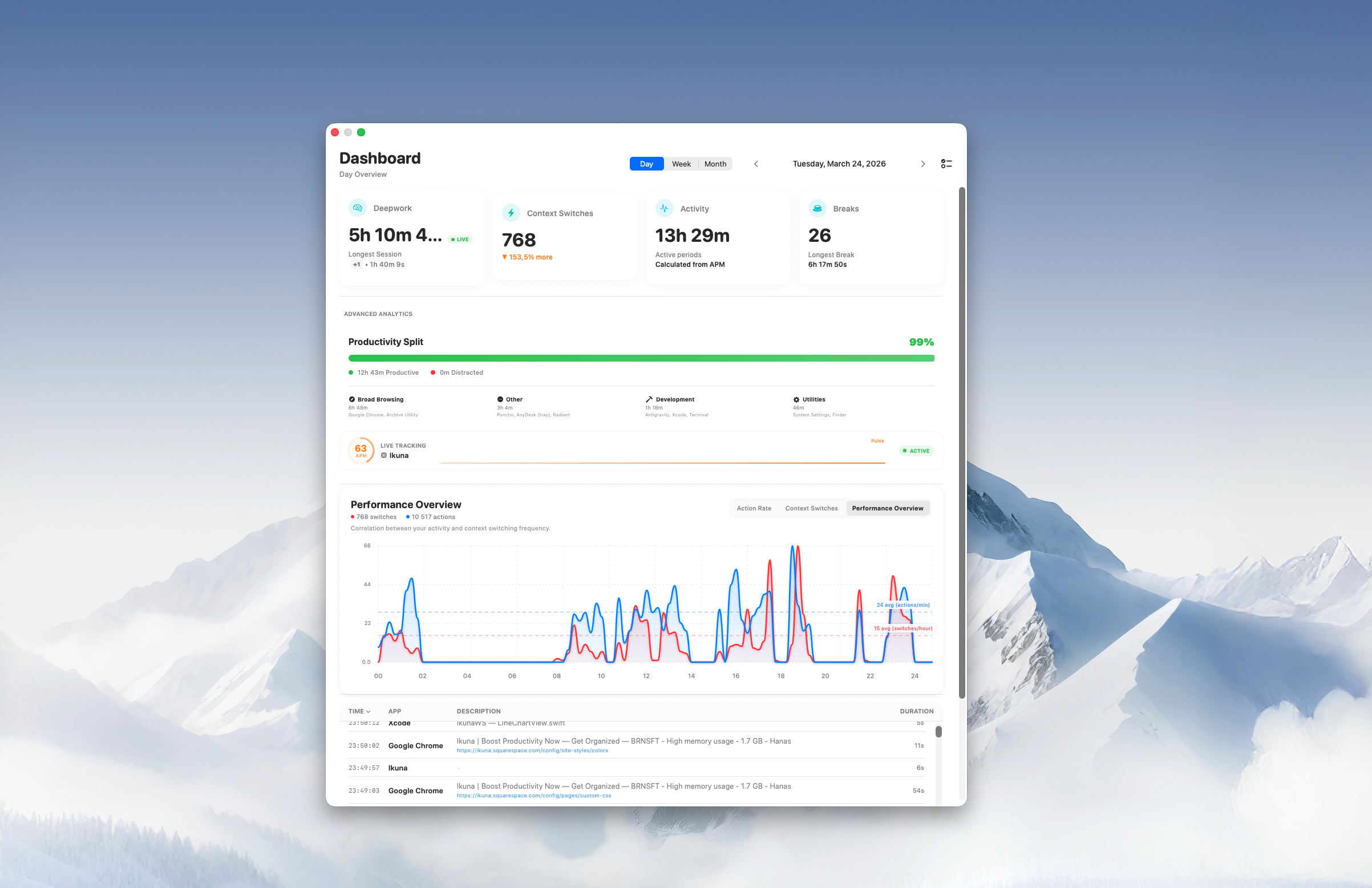
Ikuna Release Notes
Latest Version: V1.0.0
Ikuna V1.
Hey everyone!
We've been heads-down building and polishing Ikuna, and v1.0 is finally here. Wanted to give you a proper rundown of everything that's new.
Quick context if you're new here: Ikuna is a workspace manager for macOS. You save your entire app/window layout as a "workspace" and restore it in one click. The problem it solves is simple: most of us lose 10-15 minutes every morning reopening the same apps, arranging the same windows, and finding the same tabs. Multiply that across project switches throughout the day, and that adds up fast.
Since v0.9 we've focused on two things: making the core experience rock-solid for everyone, and building deeper tools for power users who want more control over their focus and workflow.
Here's what's new:
Free forever Core + Ikuna Pro
We want to dedicate more time to building Ikuna, so we're introducing Ikuna Pro. But we also want to be upfront about what that means for existing users:
Ikuna Core stays free forever. The core workspace saving and launching experience isn't going behind a paywall. That includes up to 4 workspaces, video triggers, audio triggers, Apple Script automation, and the original dashboard (deep work hours, context switches, activity/breaks, the timeline graph).
Early adopters get a Legacy tier = everything currently in Pro, granted automatically. You supported us early, and we're not pulling features out from under you.
Ikuna Pro adds deeper customization and analytics that we'll keep building on. This is where the new power-user features live.
Focus Shield (Pro)
This one came from a pattern we kept seeing in our own data. You start deep work, you're locked in, and then 20 minutes later you're on Reddit (sorry) or checking Slack "for just a second." Focus Shield catches that moment. When you slip out of deep work into a distraction app, it activates and asks you: are you sure?
You can customize which apps trigger it, set sensitivity thresholds, and choose how aggressive the nudge is. It's not a hard blocker -- it's a mirror that makes the unconscious habit conscious.
Device Link (Pro)
If you use an external monitor for work, this one is for you. You link a workspace to a specific display setup -- say your office monitor or your home ultrawide. When you plug in, Ikuna detects the device and auto-launches the linked workspace. When you disconnect, it closes cleanly.
No more manually switching between your laptop layout and your docked layout. Plug in and you're working.
Pro Dashboard (Pro)
The original dashboard showed you deep work, context switches, and a timeline. The Pro Dashboard goes deeper:
App Taxonomy: see exactly which apps are eating your focus and which ones are helping
Productivity Split & Category Split: break down your time by productive vs. unproductive, split across app categories
Weekly and Monthly analysis: spot patterns over time instead of just looking at today
The goal is to give you real data about how you actually work, not how you think you work.
What's next
Pomodoro integration is coming soon -- tying structured focus sessions directly into your workspace launches and Focus Shield. We'll share more on that shortly.
If you've been using Ikuna, update to v1.0 and let us know what you think. If you're new, Core is free and always will be -- grab it at brnsft.com/ikuna.
We're also launching on Product Hunt, so if you want to support us there, that means a lot.
Ikuna Release Notes
Latest Version: V0.6
Version 0.6 - Extra

> Added Extra tab
You’re now able to Play Spotify, Change the wallpaper and Clean the space when clicking on an Ikuna space.
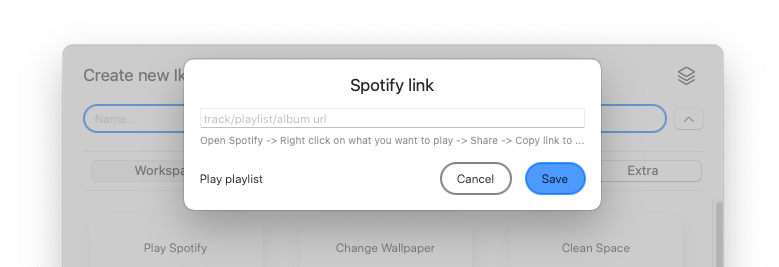
Play Spotify
Allows you to start listening to your desired playlist/album/track every time you start that Ikuna Space
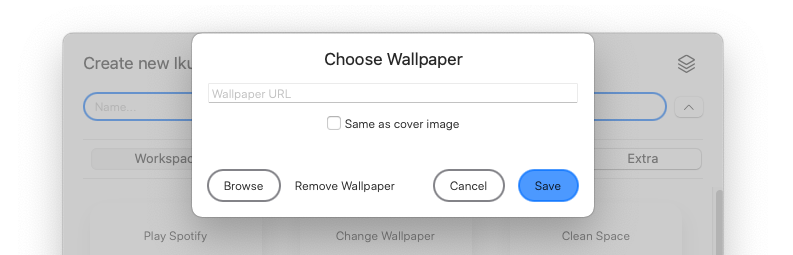
Change Wallpaper
Allows you to have one Wallpaper for each Ikuna Space.
You can either choose your Cover image or Browse and select your own custom wallpaper.
By having a constant visual cue, you are reminded of the context you are in. Try it out.
The Wallpaper will reset when you stop the Ikuna.

Clean Space
Improves the switching between Ikuna Spaces.
You can now Close or Hide apps before opening the new Ikuna Space.
> Clean workspace is now Ikuna Specific
Removed option to clean before all Ikuna switches from preferences
> Bug fixes
Version 0.5 - Dashboard MVP

> Added a dashboard
Check your activity and context switches. Combine them to analyze any correlation.
Customize the time interval from Preferences
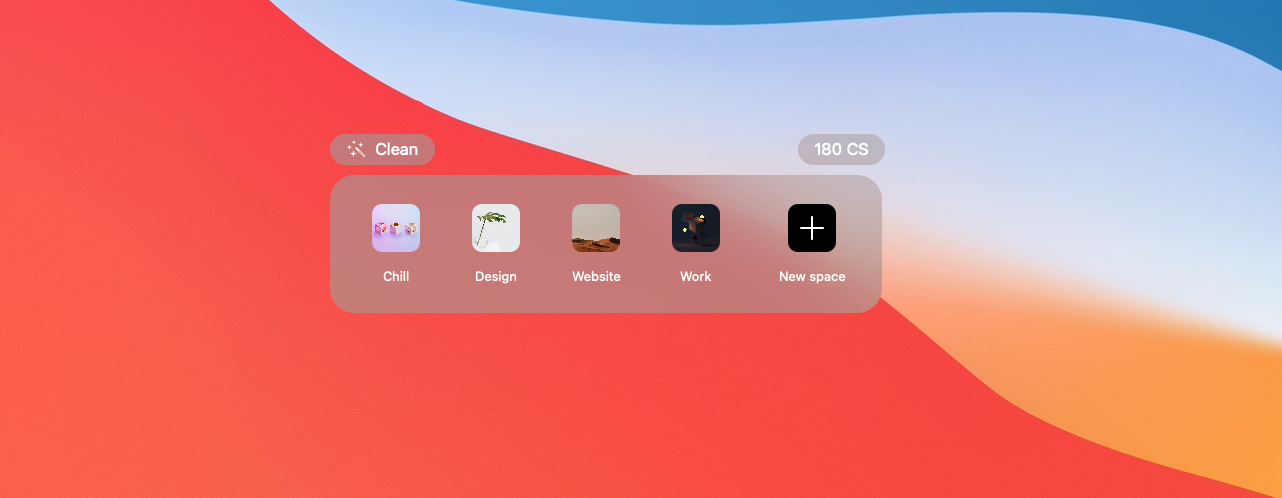
> Added Context Switches widget
Easy access to the dashboard and overview of your total context switches for the day.
Context switches are a direct
Version 0.4 - Workspace Manager

> New: Workspace Manager
Edit what apps you save and easily update your space.
To access presses the down arrow after the Name of the Ikuna
> AppMover
Moves Ikuna to the Applications folder

> Context Switcher counter
Activate it from Preferences under Experimental
> Keyboard selection of Ikunas
Tap the app shortcut one more time ⌘+§
> Fixed bugs
Version 0.3 - Clean
> New: Clean Button
Hides away all your apps - cleaning your workspace
It’s important to declutter your workspace so you don’t get distracted.
> New: Advanced Cleaning in the Menubar
Kills all apps except Ikuna. Allows you to really start Fresh.
> Advanced Creation when you create a new space Polish
You can find Advanced Creation by pressing the down arrow
> Cover Images for Spaces
Have a unique image for each space. You can change the cover from the folder.
> Google Analytics integration
Allows us to learn about the app ussage to better serve our users.
No unique identifiers are monitored!
> Fixed bugs
Version 0.2 - Creation

> Advanced creation MVP
You are able to select for your ikuna a teaser and/or soundtrack to your Ikuna space.
Create a new context, choose your trigger and start working.
Both video and audio triggers work to build an automatic behavior/ state of mind.
> Polished and improved the UX
> Fixed bugs
Version 0.1 - StartPackage

> Save your context space
The “New Space” button saves your apps and their position. Clicking on a Space will activate the apps and position them for you.
Data for each Space is recorded in a folder. You can customize it. You can save a maximum of 4 context spaces for now
> Launch at login.
Makes Ikuna always available.
> Open Ikuna Folder from the Menubar.
Manually edit Ikuna. You can change the video or audio trigger.
> Manually customize Ikuna Cover.
Go to Menubar -> Open Ikuna Folder -> Add desired cover image as “cover.png”
> Global shortcut ⌘+§
You can change it from Preferences
> Ability to run scripts together with Ikuna
Add your shell or apple script to the Ikuna folder and it will run when you launch it.
Example: Starting a specific Spotify Playlist. Opening specific links via your choice. Changing the background. (Scripts will be added to the website for you to just modify)
Check the resources page for AppleScript examples
> AutoUpdate - Check for Updates
It requires the app to be in the Applications folder
>