How to Organize Multiple Projects into Separate Workspaces on macOS (2026 Guide)
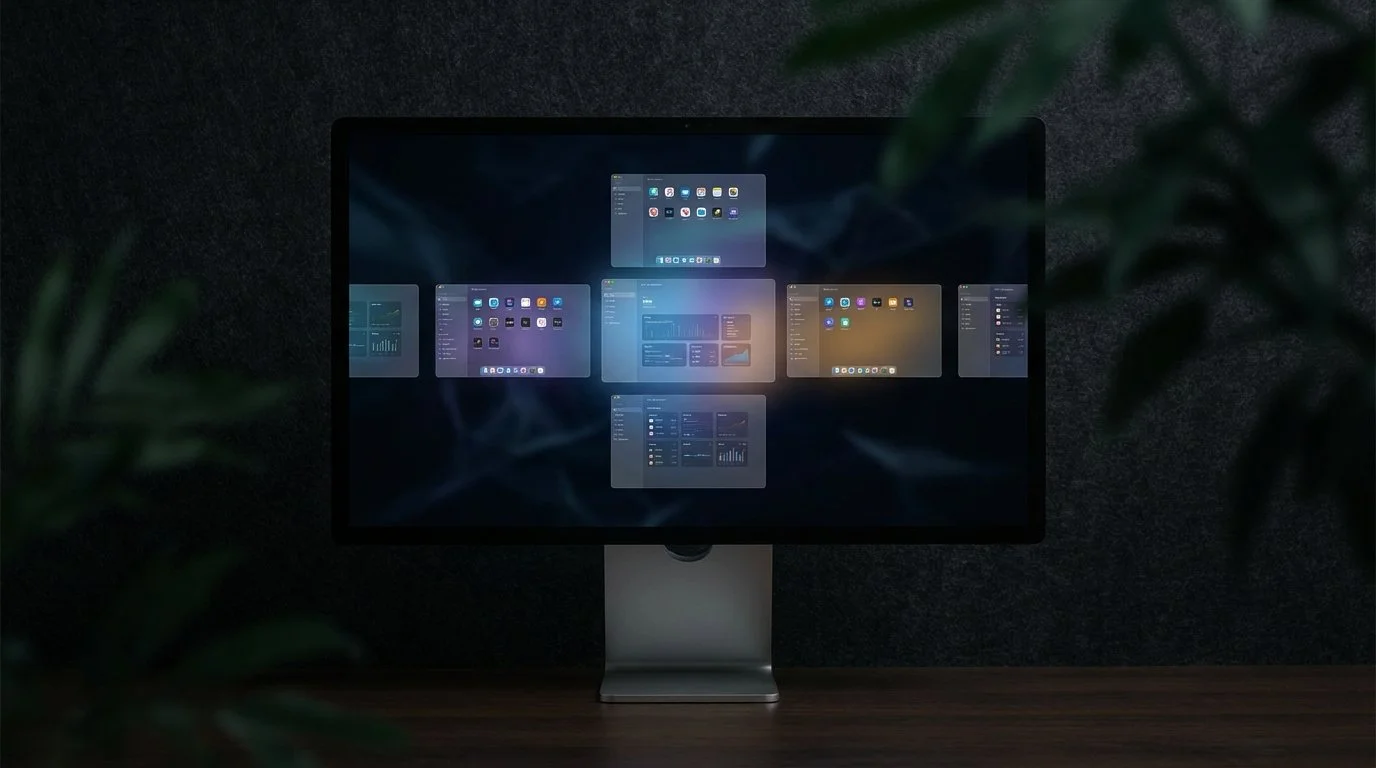
You can organize multiple projects into separate workspaces on macOS using two complementary approaches: macOS Spaces for visual screen separation, and a context manager like Ikuna for complete project environment restoration. Spaces let you assign different apps to different virtual desktops, which helps keep work visually organized while you're actively using your Mac. However, Spaces don't save your setup after a restart or remember which apps, browser tabs, or Focus Mode settings belong to each project. A context manager like Ikuna fills this gap by saving and restoring your complete project environment (apps, browser tabs, window positions, and Focus Mode settings) in one action. For serious multi-project work, you'll want both: Spaces for screen-level organization during active sessions, and Ikuna to instantly restore any project context without manual rebuilding.
What Are macOS Spaces and What Do They Actually Do?
macOS Spaces (also called Mission Control) creates multiple virtual desktops on your Mac. Each Space acts like a separate screen where you can arrange different apps and windows.
You access Spaces by swiping up with three or four fingers, pressing Control + Up Arrow, or clicking the Mission Control icon. From there, you can create new Spaces by hovering over the top-right corner and clicking the plus button. Switch between Spaces using Control + Left/Right Arrow or Control + number (Control + 1 for Space 1, Control + 2 for Space 2, etc.).
To assign an app to a specific Space, right-click its Dock icon, go to Options, then choose "This Desktop" under Assign To. This keeps that app window locked to one Space instead of following you around.
The core function is simple: Spaces separate your screen real estate so you can dedicate one virtual desktop to design work, another to communication, and another to admin tasks. While you're working, this visual separation reduces clutter and helps you focus on one project at a time.
What Does macOS Spaces NOT Do?
Spaces handle screen organization but stop short of true project management. Here are the critical gaps:
No app restoration after restart: When you reboot your Mac, Spaces don't remember which apps were open or where they were positioned
No browser tab memory: Safari and Chrome tabs aren't saved or restored per Space
No Focus Mode integration: Spaces don't trigger or save Focus Mode settings tied to specific projects
No named contexts: You can't label a Space as "Client A Project" or "Writing Work," just Space 1, Space 2, etc.
Apps open wherever you are: When you launch an app, it opens on whichever Space is currently active, not where you last used it (unless manually assigned)
Manual rebuild every session: After closing your laptop or restarting, you manually reopen every app, browser tab, and window for each project
Spaces are a layout tool, not a state-saving system. They organize what's already open but don't preserve or restore your work environment.
How to Use macOS Spaces to Separate Projects (Basic Setup)
If you want to use Spaces for basic project separation, follow these steps:
Open Mission Control by swiping up with three fingers or pressing Control + Up Arrow
Create a Space for each project by hovering over the top-right corner and clicking the plus icon
Assign apps to specific Spaces by right-clicking the app in the Dock, selecting Options > Assign To > This Desktop (do this while the app is open on the Space you want)
Label your Spaces mentally since macOS doesn't support custom names (example: Space 1 = Client A with Figma, Chrome, and Slack; Space 2 = Writing with Notion and Safari; Space 3 = Admin with Excel and Mail)
Switch between Spaces using Control + Left/Right Arrow or Control + number shortcuts (Control + 1, Control + 2, etc.)
Rebuild your setup each session by manually reopening apps and browser tabs after every restart or when starting a new work session
This setup works for 1-2 projects where you can remember what goes where. Beyond that, the manual overhead becomes a real productivity drain.
What Is Missing from Spaces for Serious Multi-Project Work?
Spaces solve the problem of visual clutter while you're actively working. They don't solve the problem of context switching or session restoration.
Every morning, after a restart, or when switching between three or more projects, you face the same manual rebuild: open the right apps, restore browser tabs from history or bookmarks, resize and position windows, and activate the correct Focus Mode. For one or two projects, this takes a few minutes. For three or more, it becomes a significant time cost that compounds daily.
Research from UC Irvine's Gloria Mark found it takes an average of 23 minutes to fully regain focus after a distraction or context switch. Manual environment rebuilding is exactly this type of friction. You're not just switching projects, you're spending cognitive energy remembering and reconstructing the workspace before you can even start the actual work.
How Does Ikuna Solve What Spaces Cannot?
Ikuna is a macOS context manager that saves and restores complete project environments in one action. Unlike Spaces, which only organize what's currently on screen, Ikuna remembers everything about a project context and brings it back instantly.
Ikuna saves named project contexts that include your apps, browser tabs, window positions, and Focus Mode settings, then restores all of it with a single click or keyboard shortcut. When you switch from your "Client A" context to your "Writing" context, Ikuna closes the Client A apps and tabs, opens your writing tools exactly where you left them, and activates the right Focus Mode automatically.
Here's how to use Ikuna for multi-project organization:
Create a context for each project: Open Ikuna and click "New Context," then name it (example: "Client A Design," "Blog Writing," "Admin Work")
Set up your project tools: Open all the apps, browser tabs, and windows you need for that project, arrange them how you want, and activate the appropriate Focus Mode
Save the context: Click "Save" in Ikuna to capture the complete environment (apps, tabs, positions, Focus settings)
Switch contexts instantly: When you need to work on a different project, select that context in Ikuna and everything switches automatically
Ikuna works across macOS Spaces, so you can use both together. The difference is that Ikuna handles the state and restoration layer that Spaces completely miss.
macOS Spaces vs. Ikuna: Feature Comparison
| Feature | macOS Spaces | Ikuna Recommended |
|---|---|---|
| Saves app state on restart | ✗ No | ✓ Yes |
| Restores browser tabs | ✗ No | ✓ Yes |
| Works with Focus Mode | ✗ No | ✓ Yes |
| Named project contexts | ✗ No | ✓ Yes |
| One-action context switching | ✗ No | ✓ Yes |
| Manual rebuild required | Yes, every session | No |
| Visual screen separation | ✓ Yes | ✓ Yes |
| Works across Spaces | ✓ Yes | ✓ Yes |
| Price | Free (built-in) | Free / €9/mo |
Can You Use macOS Spaces and Ikuna Together?
Yes, and most users do. Spaces and Ikuna solve different problems and complement each other well.
Use Spaces for screen-level separation during active work sessions. If you're working on a design project that needs Figma, Chrome, and Slack all visible at once, keep those on Space 1. Put your writing tools on Space 2. This keeps your screen organized while you're in flow.
Use Ikuna for full context restoration and switching. When you finish the design project and need to switch to writing, Ikuna closes the design apps, restores your writing environment (including the specific browser tabs and window layout you had), and activates your Writing Focus Mode. If you're using Spaces, Ikuna will restore apps to their assigned Spaces automatically.
The combination gives you both visual organization (Spaces) and zero-friction context switching (Ikuna). You get the best of both tools without choosing between them.
Frequently Asked Questions
Does macOS Spaces save my workspace when I restart?
No. Spaces only organize your screen layout while your Mac is running. When you restart or shut down, Spaces don't remember which apps were open, where windows were positioned, or which browser tabs you had active. You'll need to manually rebuild your workspace every time.
How many projects can I manage with Ikuna?
Ikuna supports unlimited named contexts on paid plans. You can create a separate context for every client, project, or work mode you need. The free trial lets you test with a limited number of contexts to see if the workflow fits your needs.
Is Ikuna free?
Ikuna offers a free trial so you can test the full feature set. After the trial, it requires a paid subscription. Pricing varies by plan, with options for individuals and teams. Check brnsft.com for current pricing details.
What happens to my current project when I switch contexts in Ikuna?
Ikuna saves the state of your current context before switching, then closes those apps and windows. When you switch back later, Ikuna restores everything exactly as you left it: same apps, same browser tabs, same window positions, same Focus Mode. Nothing is lost.
Do I need a window manager if I use Ikuna?
Ikuna is not a window manager. It saves and restores complete project environments but doesn't provide window snapping, tiling, or resizing shortcuts like Rectangle or Magnet do. If you want keyboard-driven window positioning, you can use Ikuna alongside a window manager. They serve different purposes and work well together.
